I'm a fan of apps that make my life simpler. I use Notion every day, and several other tools can be paired with it to make it even more powerful and interesting. I'm sharing 5 of these tools with you today. But before we get there, I'm aware you might not be familiar with Notion yet.
What Is Notion?
Notion is my favorite tool. It's, without exaggeration, my second brain. Basically, it's a note-taking and project management app. But the possibilities are endless with this app. To learn more if you're not familiar with it yet, read my article on the topic here.
Tool #1: Blocs to Add Widgets to Your Workspace
Blocs lets you embed functional widgets directly into your Notion pages: a Pomodoro timer, habit tracker, water intake tracker, calendar, and more. Three widgets are entirely free, no account required, and full access to the suite is a one-time payment ($17), rather than a monthly subscription. Just copy the widget's link and embed it into Notion using the "embed" feature.
Tool #2: Save to Notion
This Google Chrome extension lets you save links directly from the web into your Notion workspace. You can save articles, emails, recipes, books, and more. It's free.
A quick up-to-date note: some recent reviews report occasional bugs since Notion changed its web address in 2026. If you run into an issue, Notion's official Web Clipper remains a good fallback.
Tool #3: Make to Automate Notion With the Rest of Your Tools
Make (which I personally use in my own business) lets you connect Notion to hundreds of other apps, without needing to know how to code. For example: automatically adding a new WooCommerce sale to a Notion database, creating a Notion task from an incoming email, or syncing a new Notion entry to your mailing list. It's the perfect tool for when you want Notion to stop being an isolated island and start communicating with the rest of your digital ecosystem. The free version already allows for a decent number of automations to get started.
Tool #4: Notion Boost
A Google Chrome (and Firefox) extension for customizing Notion: text, visual appearance, new commands, and over 20 options in total. Since it's a browser extension, you need to use Notion on the web, not the desktop app, to access its features. It's an actively updated, well-rated tool.
Tool #5: Readwise to Centralize Your Reading in Notion
If you read a lot (books, articles, tweets, podcasts) and you highlight or annotate what you read, Readwise automatically syncs all those highlighted passages directly into a Notion database, organized by book, article, or source. Instead of losing your best passages scattered across your Kindle, your reading app, and random screenshots, everything ends up centralized and searchable in your second brain. It's free for the first 30 days, then paid monthly.
Obviously, since Notion is fully customizable, there's a huge range of possibilities, and it would be hard to name them all. If you'd rather not start from a blank page with all these tools, my Notion templates are already structured for you: you just need to customize them to your needs.
Frequently Asked Questions
Do I need to install all 5 tools to use Notion well?
No. Only choose the ones that address a real need you have. The more tools you add, the higher the risk of bugs or fragile dependencies.
Are these external tools safe to use with Notion?
Most of these tools work through official integration links or verified extensions on the Chrome and Firefox stores. Always check recent reviews and the permissions requested before installing anything.
Which tool should I try first?
It depends on your main need: Make if you want to connect Notion to your other business tools, Readwise if you read a lot, or Blocs if you just want a more visually dynamic workspace.
Do these tools work with the free version of Notion?
Yes, every tool mentioned here works with the free version of Notion, since they use the integration or embed feature already included in every plan.
Talk soon!
-
Sale!

Notion template — GTD planner
Original price was: 20.00$.10.00$Current price is: 10.00$. -
Sale!
Notion template — Event planner
Original price was: 19.00$.9.50$Current price is: 9.50$. -
Sale!
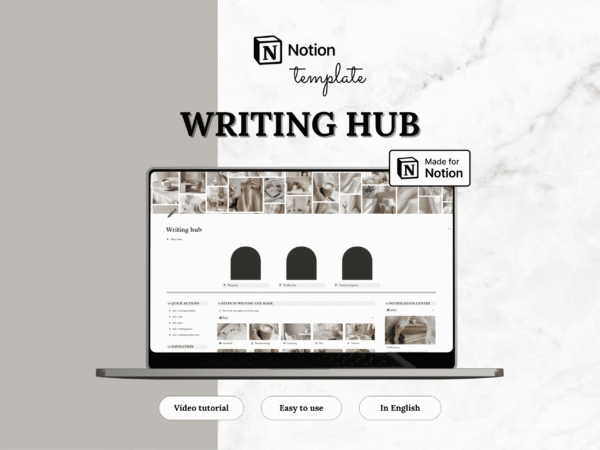
Notion template — Writing Center
Original price was: 20.00$.10.00$Current price is: 10.00$. -
Sale!
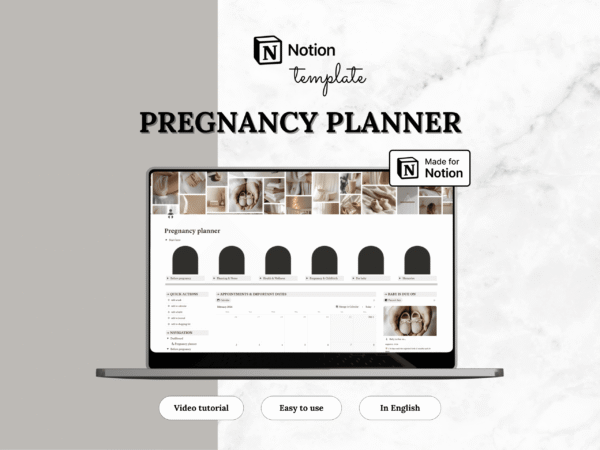
Notion template — Pregnancy planner
Original price was: 24.00$.12.00$Current price is: 12.00$. -
Sale!
Notion template — Medical planner
Original price was: 10.00$.5.00$Current price is: 5.00$. -
Sale!
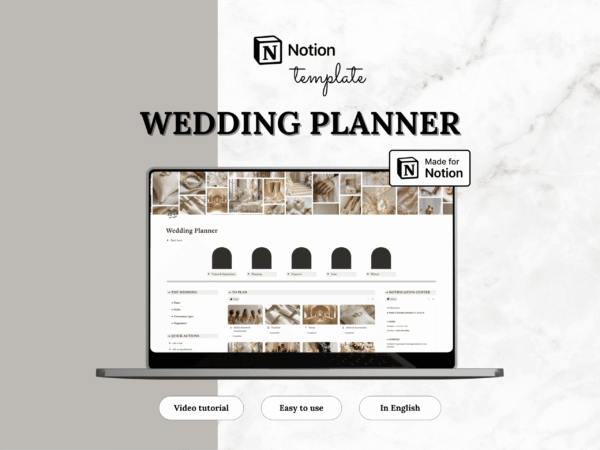
Notion template — Wedding planner
Original price was: 28.00$.14.00$Current price is: 14.00$. -
Sale!
Notion template — Language learning
Original price was: 12.00$.6.00$Current price is: 6.00$. -
Sale!
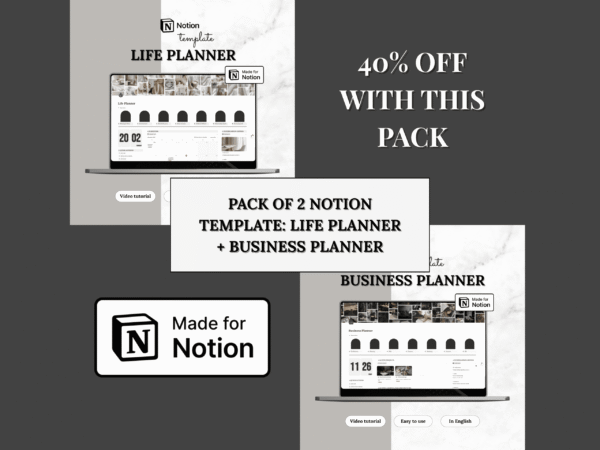
Notion templates — Life Planner & Business planner (Set of 2 templates)
Original price was: 84.00$.42.00$Current price is: 42.00$. -
Sale!
Notion template — Career planner
Original price was: 16.00$.8.00$Current price is: 8.00$. -
Sale!
Notion template — Pet planner
Original price was: 19.00$.9.50$Current price is: 9.50$. -
Sale!
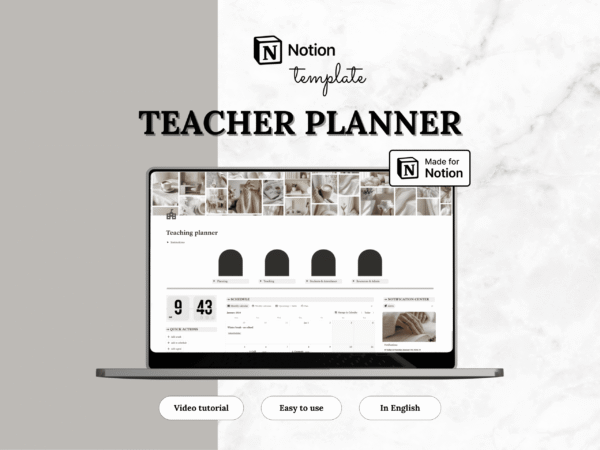
Notion template — Teacher planner
Original price was: 18.00$.9.50$Current price is: 9.50$. -
Sale!
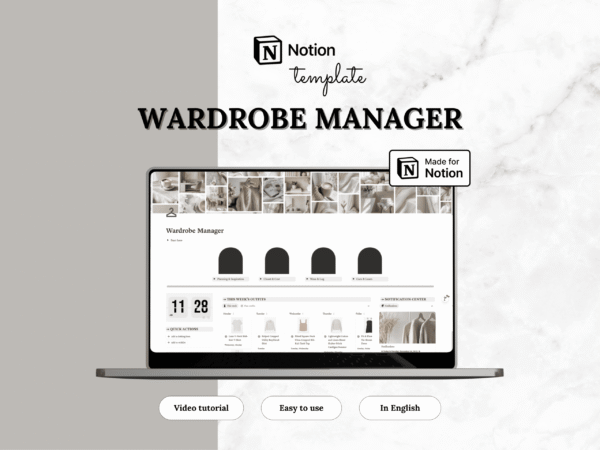
Notion template — Wardrobe Manager
Original price was: 19.00$.9.50$Current price is: 9.50$.